One account, as many teams as you need
A person signs in once and picks the team to work in. Each team has its own dashboard, its own settings, its own members and its own plan, and nothing crosses from one to another.
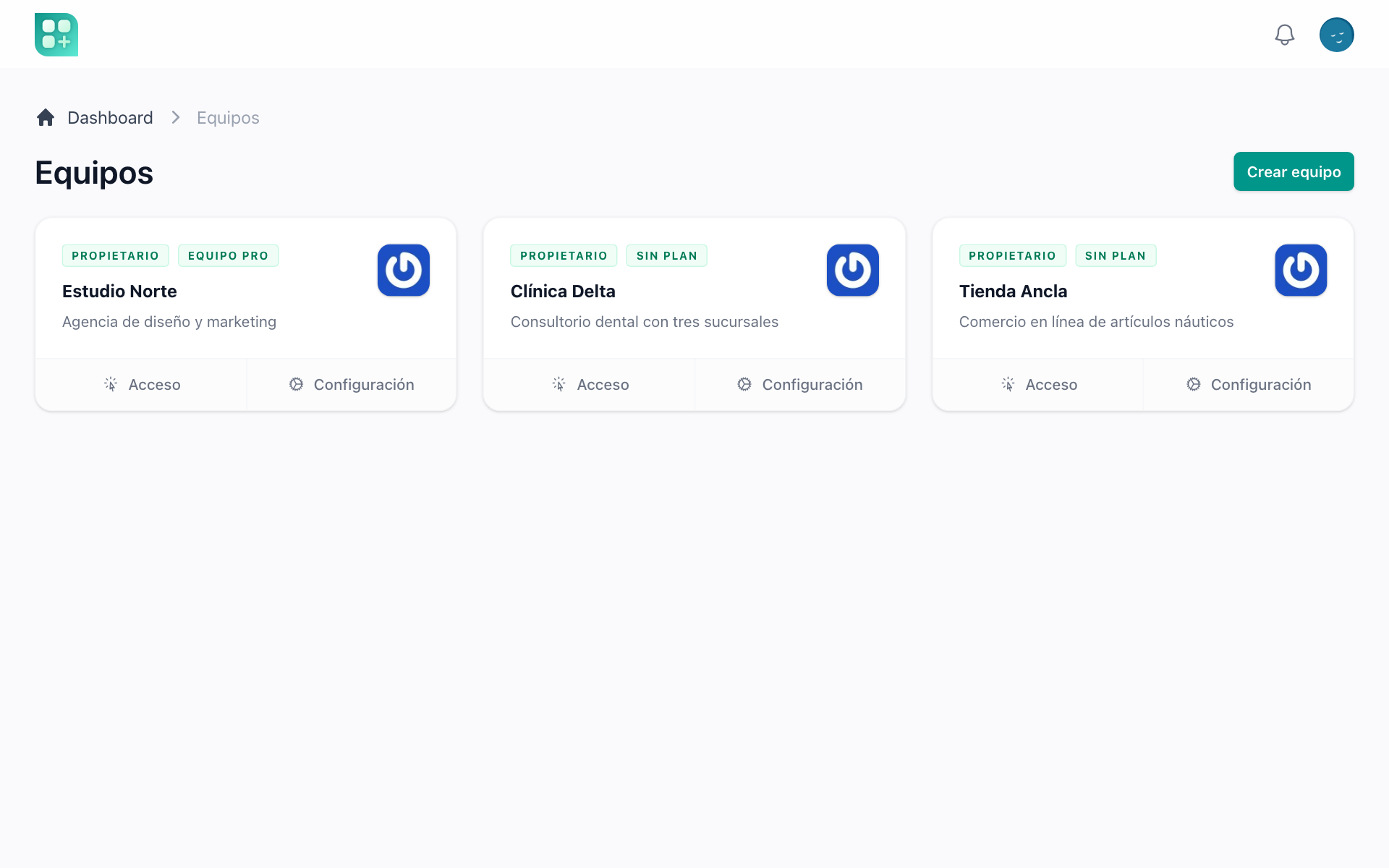
Pick a team, or go straight to the only one
After signing in, the person sees every team they belong to and opens one. Someone who belongs to a single team skips the list, and you can turn the whole multi-team mode off when your product wants one team per person.
How the switcher works →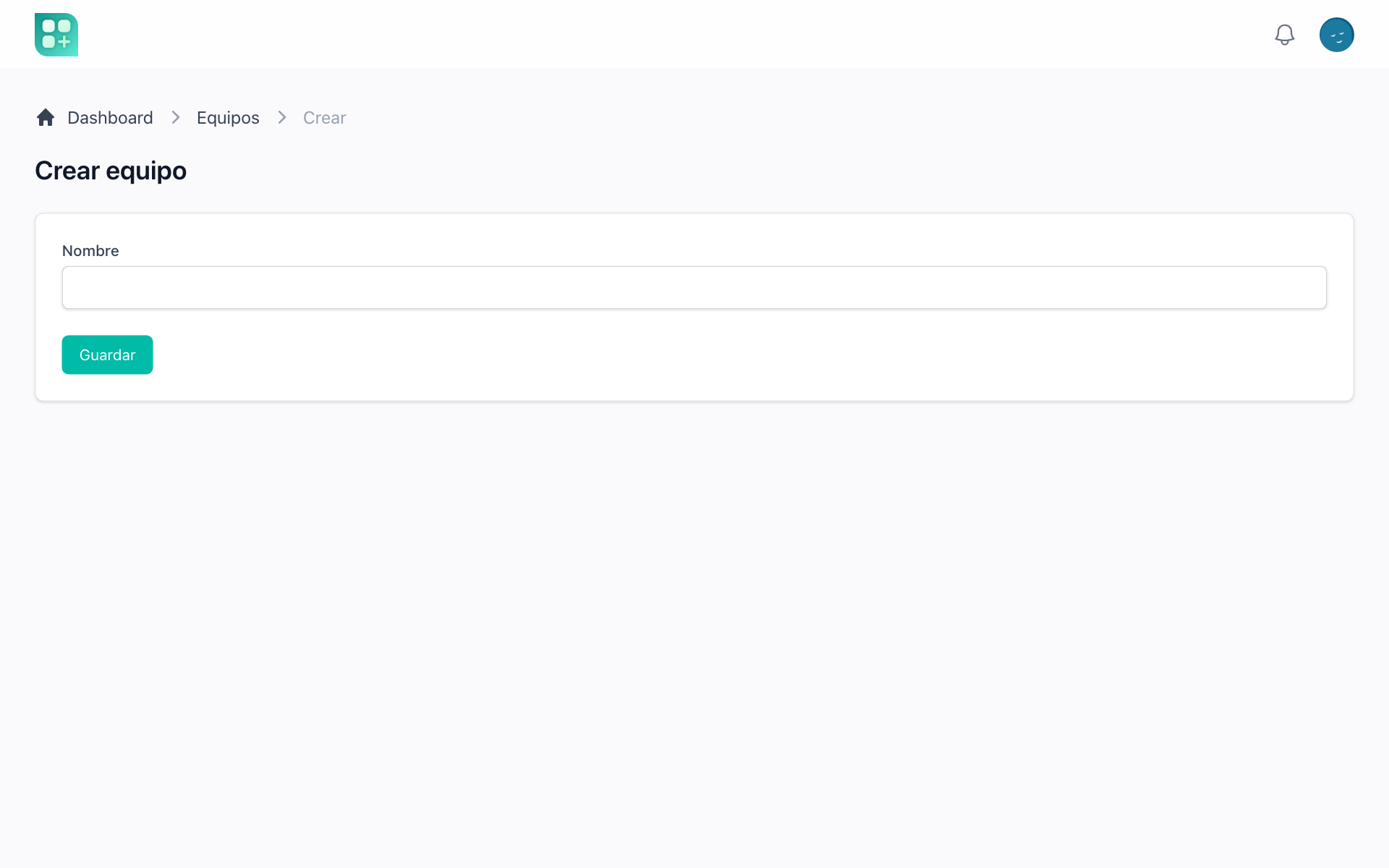
Create a team and it comes ready to use
A name is enough. The person who creates the team is its owner, the default roles are created inside it, and when plans are on the team starts on the free plan without anyone touching a card.
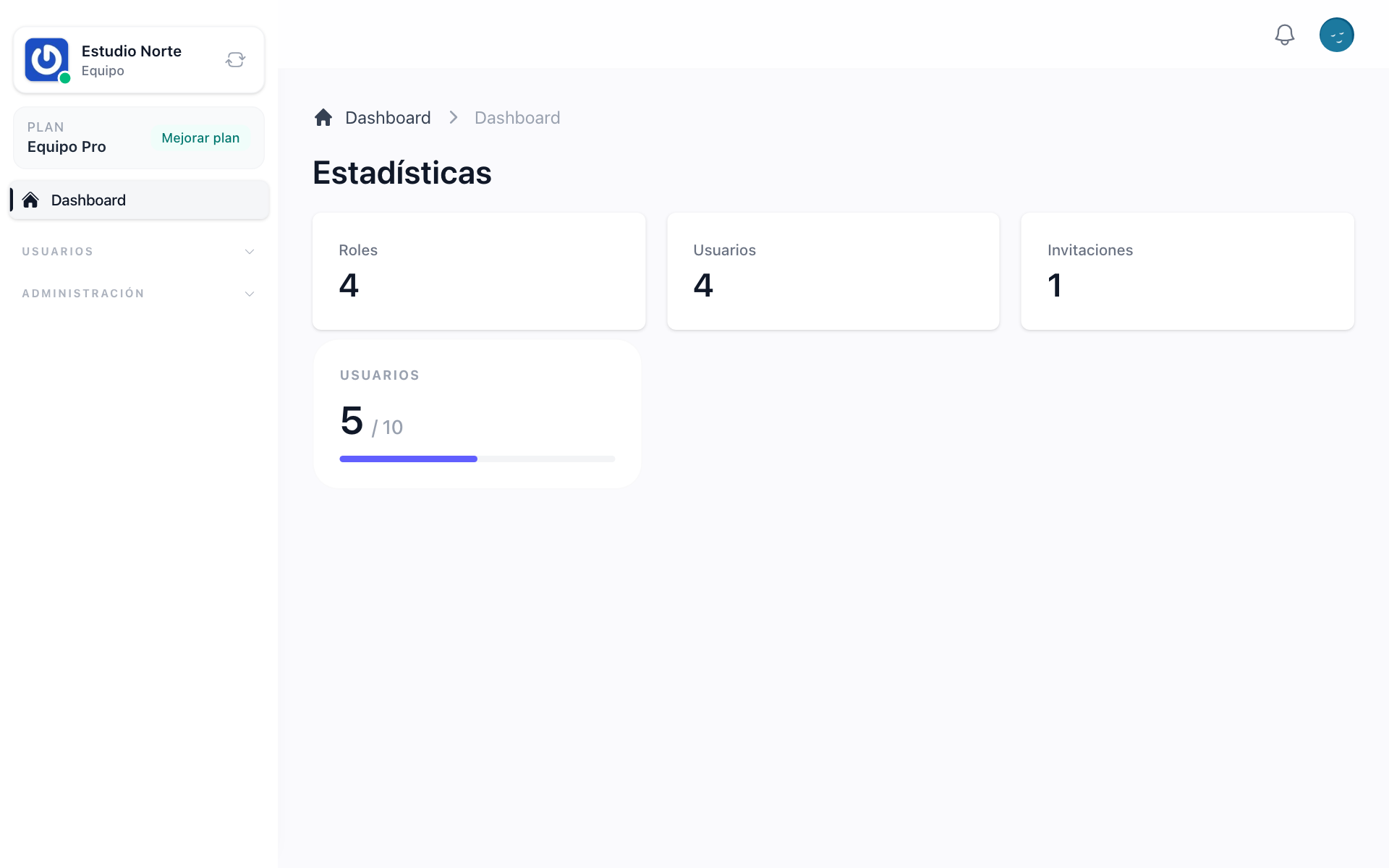
A workspace that knows which team you are in
Every screen under the workspace runs inside the team you picked: the lists show its records, the permissions are its permissions, and the counters on the dashboard are its counters. Switching teams changes all of it in one click.
How the team context is resolved →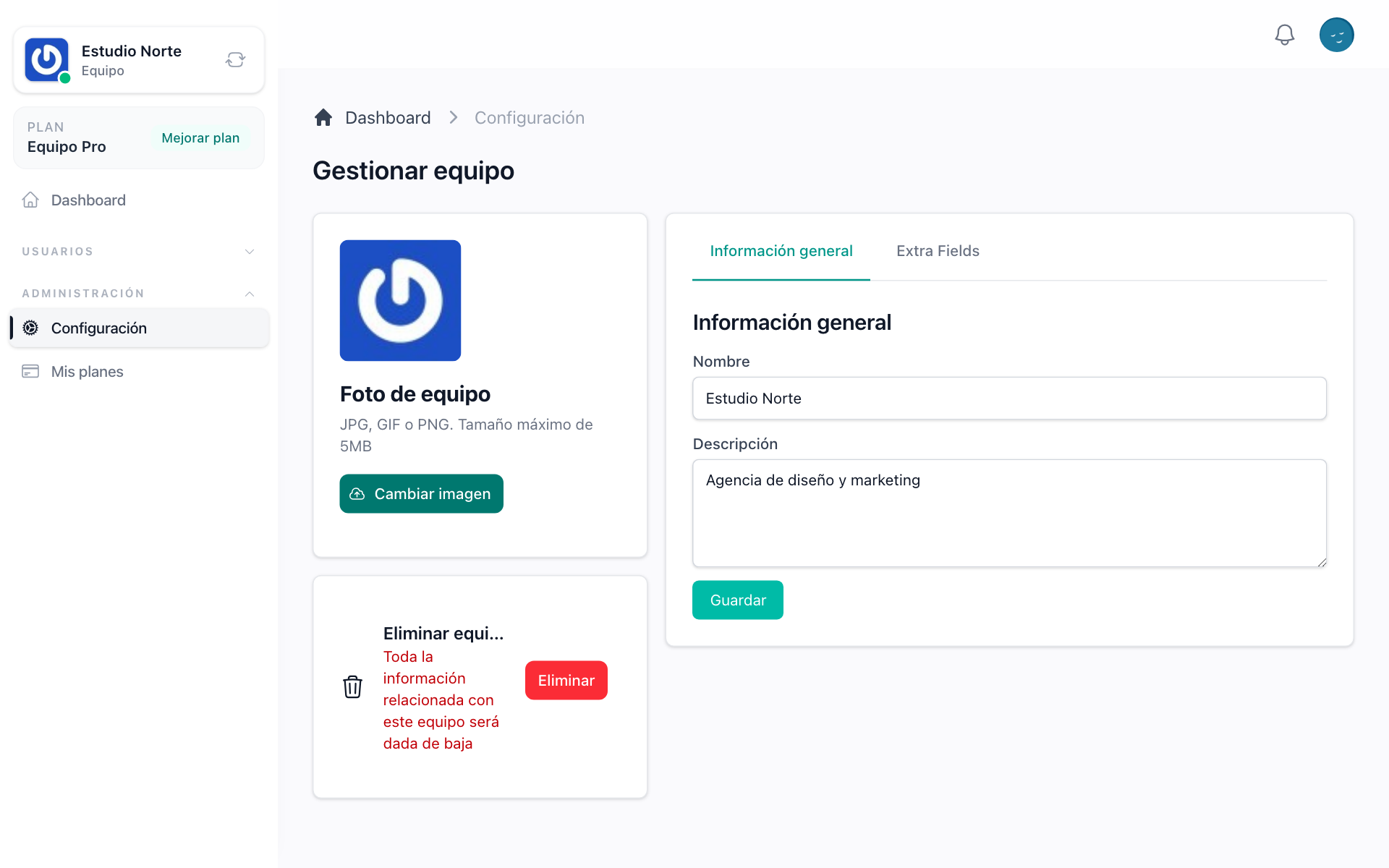
Settings, a logo and fields of your own
The team edits its name, its description and its logo from the settings screen: drop an image in, swap it for another, or take it off and go back to the avatar generated from the team name. Extra fields your product needs, a tax id, an address, a timezone, are stored with the team without a migration.
Add a field to a team without a migration
From the teams list in the admin panel, whoever runs your product adds the fields the team form does not ask for yet: a tax id, an account manager, a contract date, a value picked from a list, an image. They show up in the form of every team, and as a column in the list when you want them there. No migration and no deploy, and the fields the team writes for itself stay separate.
What an administrator changes per team →A file library and a disk quota of its own
Every team gets a shared file library, with folders, drag-and-drop uploads and previews, and a Space screen showing how much of its quota it takes. The quota is a limit on the team plan like any other, so you price it and sell more of it. The team logo lives there too and counts the same.
How team files and space work →Move a team between environments
From the team settings, pack everything the team owns into one file, files included, and load it into a team in another environment. What travels is read from the relations your own Team model declares, so the tables you add come along without touching the exporter.
How to move a team's data →Leave a team, or close it, with a confirmation that means it
A member leaves a team by typing its name. The owner closes it the same way, and every member loses access at once. Nothing is lost by a misclick.
Categories that belong to the team
The categories your product lets people create are scoped to the team that created them, so two teams can use the same names without ever seeing each other.