
Team roles and permissions
The owner role, the default role, the roles a team writes for itself, and what each permission lets a member do.
What a person can do inside a team is decided by their role in that team. This guide says which roles a team is born with, how it writes more, and what each permission on the Roles screen lets a member do.
Two separate sets of roles
The admin panel has its own roles, given by whoever runs the product. Each team has its own roles, written by the team. The two never mix: being an administrator of the product says nothing about what the person can do inside a team, and being a team's owner says nothing about the admin panel. The same account can be both.
The roles a team is born with
Every new team starts with two roles:
| Role | Who has it | What it can do |
|---|---|---|
| Administrator | The person who created the team, the owner. | Everything in the team. |
| User | Every member added later, unless you pick another role in the form. | Only Members: See. |
The owner
The owner is the person who created the team. The owner can always see, add, change and remove members, whatever their role says, and is the only one who can delete the team. Everything else — the settings, the files and space, the roles, the plans and billing — the owner reaches through the Administrator role, which has every permission. If your product withholds a permission from that role, the owner does not have it either. There is no way to make someone else the owner: the team was created by one person and stays theirs.
Roles the team writes
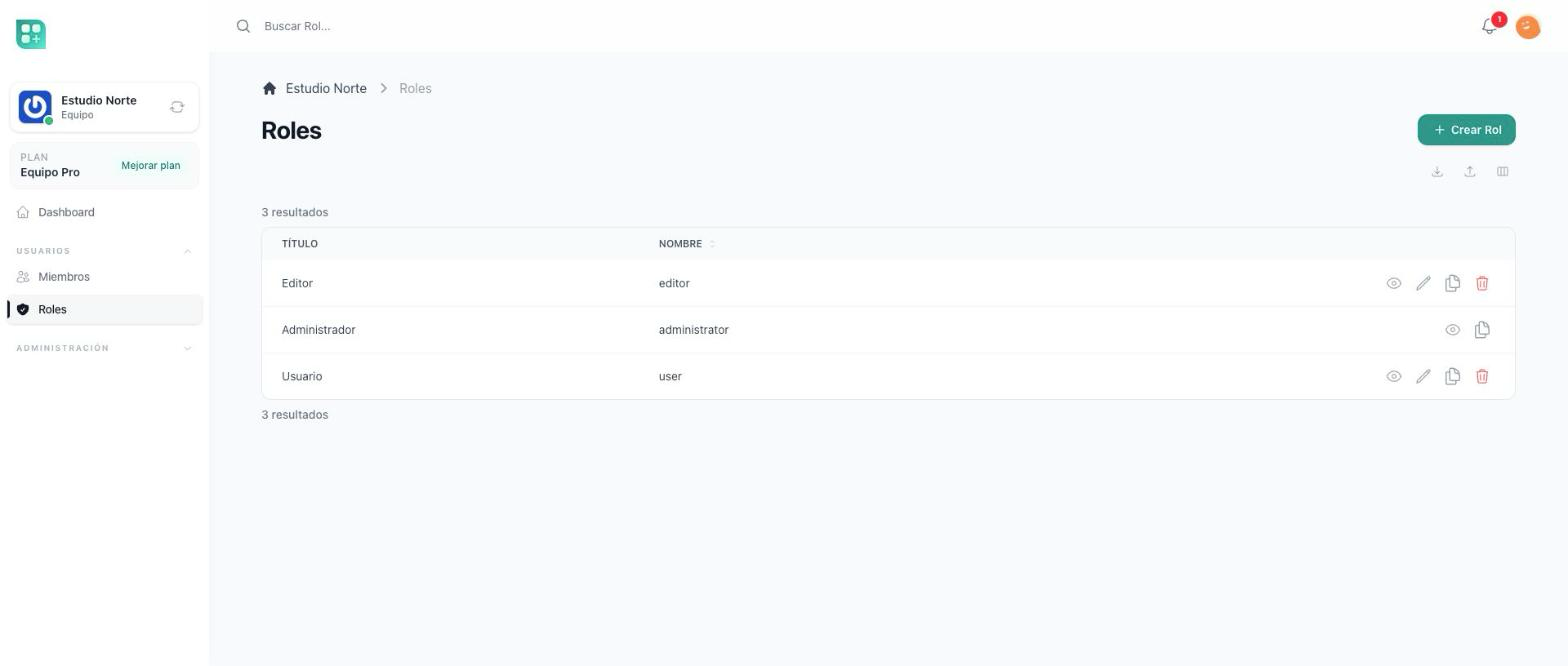
The team's Roles screen lists its roles. It is in the team menu, in the Team group next to Members, for every member whose role can see roles. A role created there belongs only to this team: its name has to be unique inside the team, and other teams never see it. The form asks for a name and shows every permission as a grid of checkboxes:
- One row per kind of record, such as Members or Role, with the columns Create, See, Update and Delete. Click a column header to tick the whole column, or a row's name to tick the whole row.
- Under it, the Permissions list, with the switches that do not fit the grid, such as Edit Settings or Manage Plans.
A member allowed to create roles can Clone one from the list: the copy keeps the permissions, and gets a name that does not collide.
Deleting a role a member holds leaves that member with no role in the team; give them another one first from the members list.
What each permission lets a member do
| On the Roles screen | What it lets the member do |
|---|---|
| Members: See | Open the members list. |
| Members: Create | Add and invite members. |
| Members: Update | Change a member's role. |
| Members: Delete | Remove a member or cancel an invitation. |
| Edit Settings | Change the team's settings. Every member opens Settings, since leaving the team is there; only this permission lets them change anything on it. |
| Manage Plans | Open the plans, add-ons, billing and payment methods screens, and nothing else. Without it, opening one of them sends the member back to the dashboard with a message. |
| Manage Media | See Files and Space in the team menu and open them: browse, upload, rename, move and delete the team's files and folders. See Team files and space. |
| View team tickets | See and work on every support ticket of this team, not only the ones they created: reply, attach files, close and reopen them. See Ask for support from a team. |
The members, roles, files and space screens each ask only for their own permission; Manage Plans opens the billing screens and nothing more.
For developers
-
The admin panel's roles are on the
webguard and the team's on theteamguard, on Spatie Permission's teams mode. How the right set is chosen on each request is in The team context. -
The starting roles are declared in
config/app.php:'team_owner_role' => 'administrator', 'team_default_role' => 'user', 'team_roles' => [ 'user' => [ 'retrieve members', ], ],When a team is created, every role in
team_rolesis created inside it with the permissions listed, and the role named inteam_owner_roleis created with every permission of theteamguard and assigned to the creator.team_default_rolehas to be one of the keys ofteam_roles. A key added toteam_rolesreaches only the teams created afterwards; write a migration to create it in the existing ones. -
The owner is the user in
creator_user_id. OnlyUserTeamPolicy, the members screens' policy, lets the owner through without consulting a permission, and onlyTeamPolicy::delete()is reserved to the owner. Every other screen — settings, media, space, roles, billing — asks for its permission, and the owner passes because the owner role is created with everyteampermission except those listed inteam_restricted_permissions:'team_restricted_permissions' => [ // Team permissions the owner must NOT receive on signup ],A permission listed there is missing from the owner role of every team created afterwards, so the owner is refused where it is asked for.
-
The roles screen is the team-scoped resource at
/team/roles. It sets$menu_group = 'Team', so the team sidebar lists it in the Team group for members whose role holdsretrieve role. -
Team permissions are declared in
config/app.php→permissions, each with its guard:'permissions' => [ 'retrieve members' => 'team', 'create members' => 'team', 'update members' => 'team', 'delete members' => 'team', 'edit settings' => 'team', 'manage plans' => 'team', 'manage media' => 'team', 'view_team ticket' => 'team', ],Run
php artisan db:seed --class=PermissionSeederafter adding one and it exists for every team, but no role holds it yet: the seeder only creates permissions. A team created afterwards gets it in its owner role. For the teams that already exist, write a migration that gives it to every owner role, as2026_10_14_100001_create_the_manage_media_permission_of_the_team_guard.phpdoes formanage media, and leave it out when the permission is inteam_restricted_permissions. Withdiscover_front_permissionson, the seeder also createsretrieve,create,updateanddeletefor every Laravel Front resource, on the guard the resource declares: a resource underapp/Front/Resources/Team/gets them on theteamguard. See Build a team-scoped CRUD.allow_permisisons_deletiondeletes on seeding any permission that is no longer declared or discovered. -
The grid's rows and switches are the permission names passed through the translator:
edit settingsshows as Edit Settings, and the second word of acreate/retrieve/update/deletepermission names its row. -
Inside a request under
/teamthe context is already the team's, so the base's policies and helpers work as they are:$this->authorize('viewAny', UserTeam::class); auth()->user()->hasPermissionTo('edit settings', 'team');Pass the guard when you call Spatie directly, as in the second line, because the user's default guard is
web. In a queued job, a command or a modal loaded outside the request, set the context first; The team context explains how.