
Team files and space
The shared file library a team gets, the storage quota you set on its plan, the permission that opens both screens, and where the team logo now lives.
Every account has its own file library and storage quota. A team gets the same two things: one shared folder every member works in, and a quota set on the team's plan that can be sold in larger sizes. This guide covers both screens, the permission that opens them, and what changed about the team logo.
The two screens
| Screen | What it shows |
|---|---|
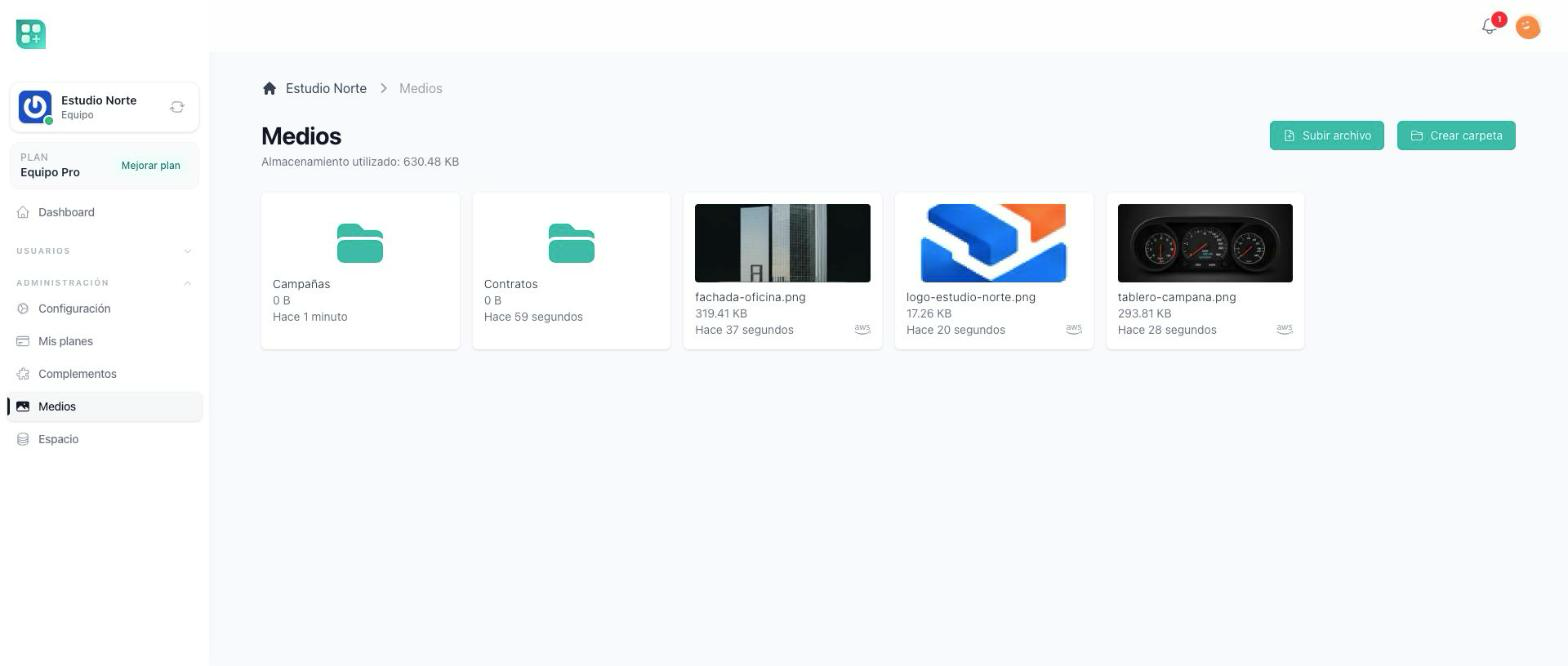
| Media | The team's files and folders: browse, upload, rename, move, delete, preview. |
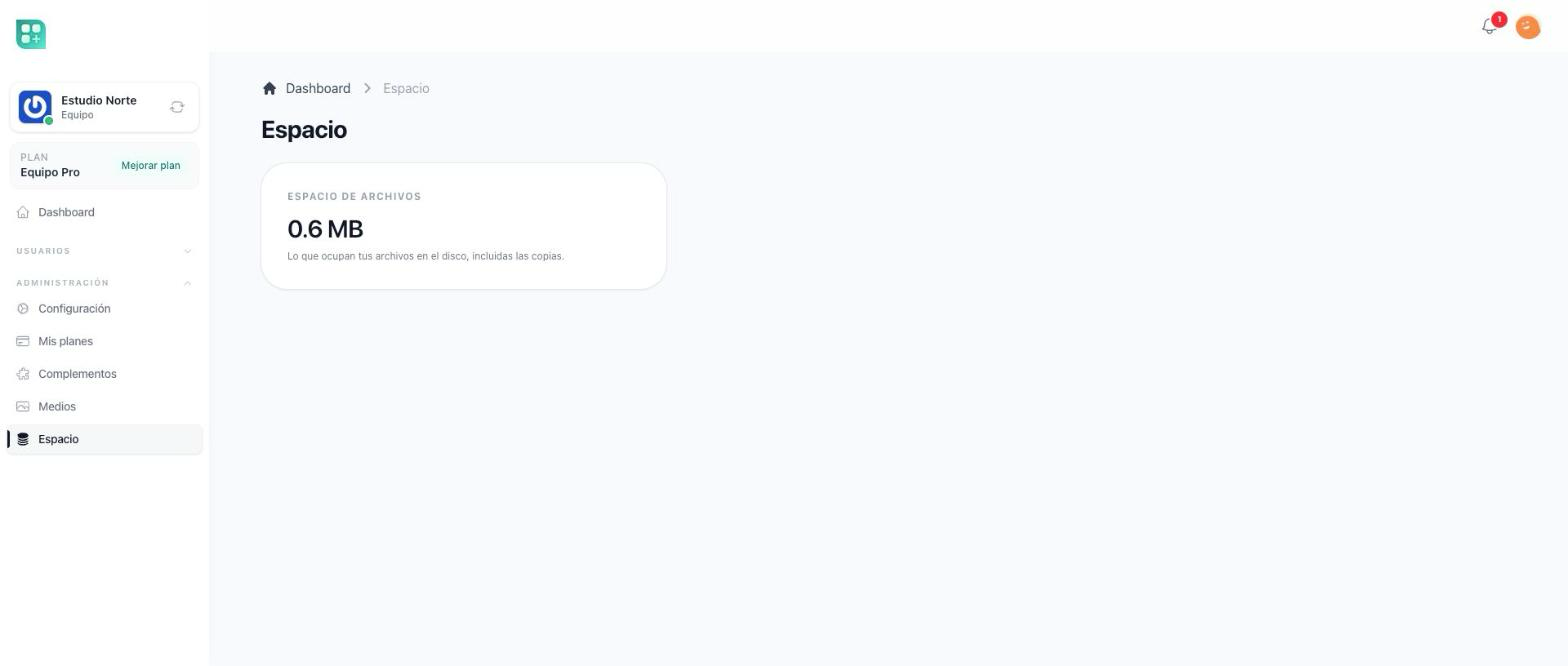
| Space | How much room the team's files take up, against its quota. |
Both appear in the team menu's Files group, the Media screen as Files. Opening either one takes one thing: the Manage Media permission on the team's Roles screen, which is in the team menu under Team, right after Members.
- Whoever has it sees Files and Space in the menu and opens both, whether plans are switched on or off, and whatever the team's plan or balance.
- Whoever does not have it does not see the entries, and cannot open the screens.
- The team's owner role has it from the start, like every other team permission, unless your product keeps it from owners; give it to another role from the Roles screen. See Team roles and permissions.
One shared folder
A team has a single folder tree, and everyone who can open it sees the same thing. There are no per-member folders and no private area: a file one member uploads is a file any other member with the permission can rename, move or delete. That is the point — the files belong to the team, not to whoever happened to upload them.
Files that belong to one person already have a place: each person's own library, in their account, is untouched and follows them into every team.
Setting the quota
The quota is the plan's disk_space limit. Its number is read in the unit your product uses for disk space — megabytes or gigabytes — and teams use that same unit.
- Open the team's plan in the admin panel and add Disk space (the disk_space limit) under Capacity and limits, with the amount of space the plan includes, in that unit.
- Nothing else. The team's screens read it straight away, and so does the usage card on the team dashboard.
To sell more space, create an add-on with Sold by tiers on and a Disk space row under Limits, and put the amount, in the same unit, in the units column of each price variation — the column is named after the unit, Gigabytes for instance. Buying it raises the team's quota immediately; cancelling lowers it. The full walkthrough is Sell add-ons on the base's site.
With plans off, or on a plan that does not set disk_space, there is no quota and nothing is blocked. A team with no active plan is the opposite: its quota is zero, so every upload is refused — the Media screen, the uploaders and the team logo alike — and its Space screen shows the size its files take with "Not included in your plan" under it. See Team plans and billing.
What happens at the quota
An upload is refused once the team is at its quota, and so is a file that would take the team past it: the person is told why instead of being shown a success message. In some setups the Media screen's own upload can still let one file cross the quota from below; there, as for a personal account, the next upload is refused once the team is at its quota. Everything else keeps working: renaming, moving, deleting files and creating folders are never blocked, because they are the way back down.
A product can choose to refuse a team's files only once the team is at its quota. There, a file larger than the room left still goes in — by the Media screen, the uploaders, a file sent straight to S3 or an image given by address — and the next upload is refused, since the team is then at its quota. Importing a team's data package is the exception: it is refused whole whenever its files do not fit in the room left, whatever the product chose.
Nothing is ever deleted automatically. A team that ends up above its quota — by cancelling an add-on, or by moving to a smaller plan — keeps its files and simply cannot add more until it frees some up or buys space.
The space screen shows what the team uses against what its plan gives it, each in its own size — "500 MB of 2 GB", or "300 KB of 2 GB" while the team uses under a megabyte, as the Media screen reads it — warns from 80%, and says so plainly once the team is out of room. The disk space card on the team's add-ons screen says the same at the limit, and names both ways out: free some up, or buy more capacity. Files are freed from the Media screen.
What the space screen does not show
It shows the total and the quota, and that is all.
- No breakdown by area. The personal space screen lists what each part of the product is occupying. That count is built per person and there is no team equivalent; the team screen answers the question the quota asks — how full is it.
- No "clean up history" button. The personal screen offers one because a person accumulates an access and activity history that is theirs to delete. A team's activity history is a record of what its members did, not something the team owns and can throw away, so there is nothing for that button to clean.
The team logo is a file in the library
The logo is set in Settings, in the Team picture card, which looks like the profile photo of your own account: the team's picture on the left, and on its right the title, the accepted formats and a one-line box to drop a file on or click to choose one. On a phone the picture goes on top. Without a logo the picture is the avatar generated from the team's name; with one, the logo takes its place, with its buttons on its corner and its name and size under the box. Same formats as before, same 5 MB limit. There is no save button: each change applies as soon as you make it and confirms itself once. Members who cannot edit the team's settings see only the picture beside the title.
- Replace it by uploading another. It takes the old one's place at once, without asking what to do with it: the one it had is deleted, not kept. Your own profile photo is replaced the same way.
- Remove from this record takes the logo off the team but keeps the file in the library, still counting against the quota.
- Delete from the media library deletes the file for real, and the space it took goes back to the team.
- After either of the last two, the team shows the avatar generated from its name again, the way a team that never had a logo does.
- It sits in the Teams folder of the Media screen, inside the subfolder named with the team's number, and counts against the team's quota, like any other file. A logo that would take the team past its quota is refused.
Logos saved before the library existed were moved into it, so a team that had one may see its usage grow without anybody having uploaded anything: a logo takes up space, so it counts. Nothing was lost — the files were copied, not moved. A team whose logo file was already gone shows the generated avatar instead, and can upload a new one whenever it wants.
Files attached to support tickets
When support tickets are on, the files a member attaches to one of the team's tickets — when sending it, or in a reply from Support in their account — are the team's files too. They land in the Support tickets folder of the team's Media screen and count against the team's quota, so a team that is out of space, or has no plan, cannot attach more until it frees some up. Files the support team attaches to its answers do not count against the team. See Ask for support from a team.
Files attached to the team's tickets before they began counting as the team's were kept in the Support tickets folder of whoever attached them. They have been moved to the team's Support tickets folder, each in its ticket's folder, so they now show in the team's Media screen and count against the team's quota instead of that person's.
Teams created before this
Every team has its folder from the moment it is created. Teams that already existed were given theirs, and their owner role was given Manage Media (unless your product keeps it from owners), when the product was updated — nothing to do by hand.
For developers
- The screens are
/team/mediaand/team/space; the permission ismanage mediaon theteamguard. The personal library is/app/media. The team's Roles screen, where the permission is given, is/team/roles. A permission listed inteam_restricted_permissions(config/app.php) is not given to the owner role. - The quota is the
disk_spacemeter the base seeds. Its unit is$diskSpaceUnitinApp\Classes\PlanLimits, gigabytes unless you declared otherwise; there is no separate unit for teams. With plans off, or on a plan that does not declaredisk_space, no quota resolves. - The one place a file can cross the quota from below is the Media screen's own upload when files are not sent straight to S3 — unless the product sets
multimedia.refuse_uploads_only_at_quotatotruein its ownconfig/multimedia.php, which lets every path take a file larger than the room left and refuse only at the quota. A data package is still measured against the room left. - Code that has to keep a file in a team's library — a generated document, a report — stores it with
App\Classes\TeamFiles::store()orstoreContents(), which charge it to the team. - If a logo still on the disk could not be moved into the library, the migrations stop instead of finishing, name the teams it belongs to, and keep the old logo column so nothing is lost. Run the migrations again to retry; the column is removed once every such logo has been moved. The migrations that came with this also created each existing team's folder and gave its owner role
manage media; the permission itself is created by migration when missing, so a product deployed withmigratealone has it without runningPermissionSeeder. - Files land on the media disk under
teams/{team_id}/{media_id}/(App\Classes\Media\PathGenerator, aftermedia-library.prefixwhen one is set), beside theusers/{user_id}/folders of personal libraries. Which disk that is, and how to point it at S3 or keep it local, is Files, images and storage on the base's site. - Ticket attachments:
Shared\Tickets\Createpasses the current team, and the reply form on/team/tickets/{ticket}the ticket's team, as the uploader'sownerwith theSupport ticketsfolder; the support inbox's reply form uploads to the general folder, and a ticket whose team is gone uploads to the replier's own library.