
Members and invitations
How a person is added to a team by email, phone or username, what happens when they have no account yet, and how roles are changed from the list.
A team grows from Members, in the team menu. This guide covers the members list, the form that adds someone, what happens to a person who has no account yet, and the notices each step sends. Which ways of identifying a person the form accepts is decided by how sign-in is set up in your product: see Configure sign-in and registration.
The members list
Members shows two tables:
- Members, with the columns Name, Email, Role and Created, the date the person's account was created. From each row, a member allowed to change roles changes the role, and one allowed to remove members removes the person from the team.
- Invitations, with the invitation's number, the email and the date, for people who were invited and have not joined yet. A member allowed to remove members cancels one. Products that create the account straight away never leave anyone waiting, so they do not show this table.
Each table has its own pages: moving through the invitations leaves the members list on the page it was, and the other way round.
Removing a member takes them out of the team and sends them a notice, in their account and by email. Their account is untouched, and so is their place in any other team.
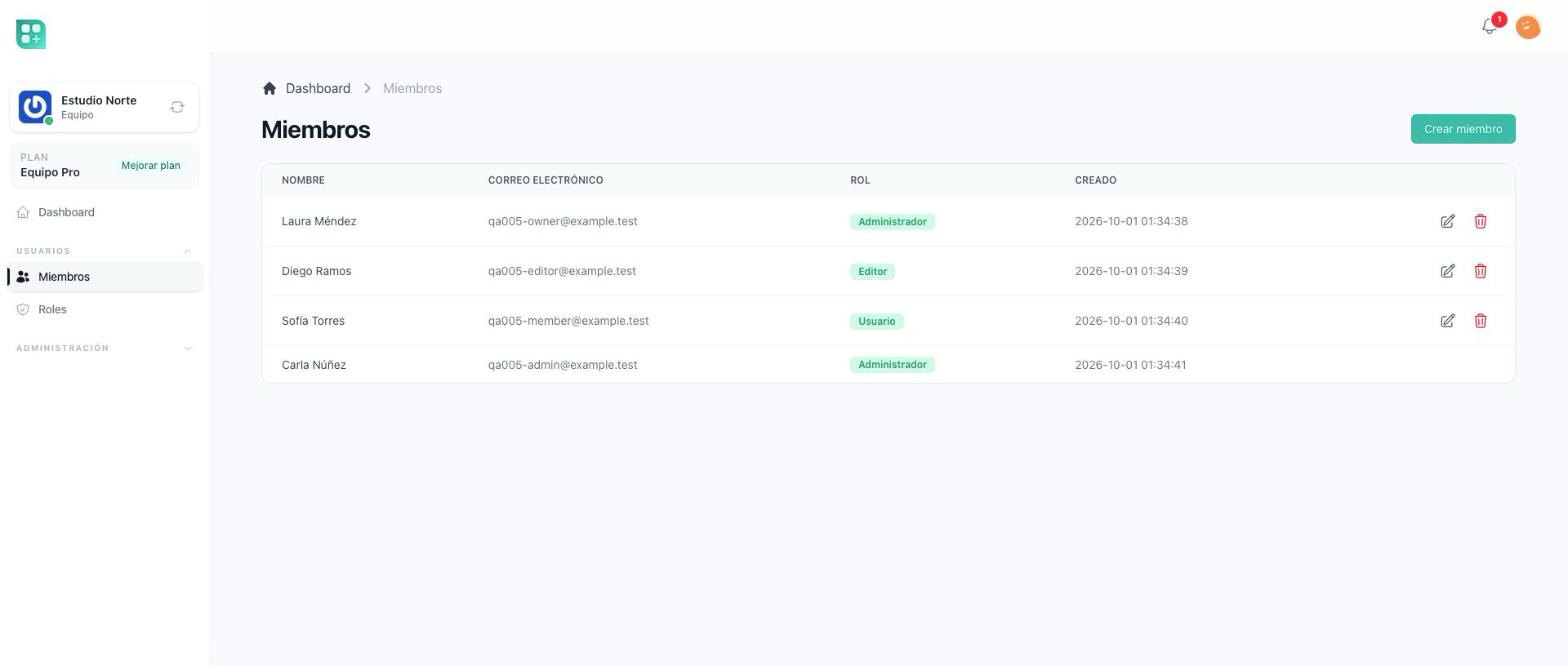
Adding a member
Create member opens the form. It asks first how the person is identified, with one button per identity your product accepts, plus Auto-detect, which reads whatever is typed: an address is an email, a number is a phone, anything else is a username. When your product accepts only one identity, that question is skipped and the form goes straight to it. Then it asks for the identity, a role from the team's roles, and, when the person does not exist yet, a name.
What happens on save depends on whether an account already has that identity.
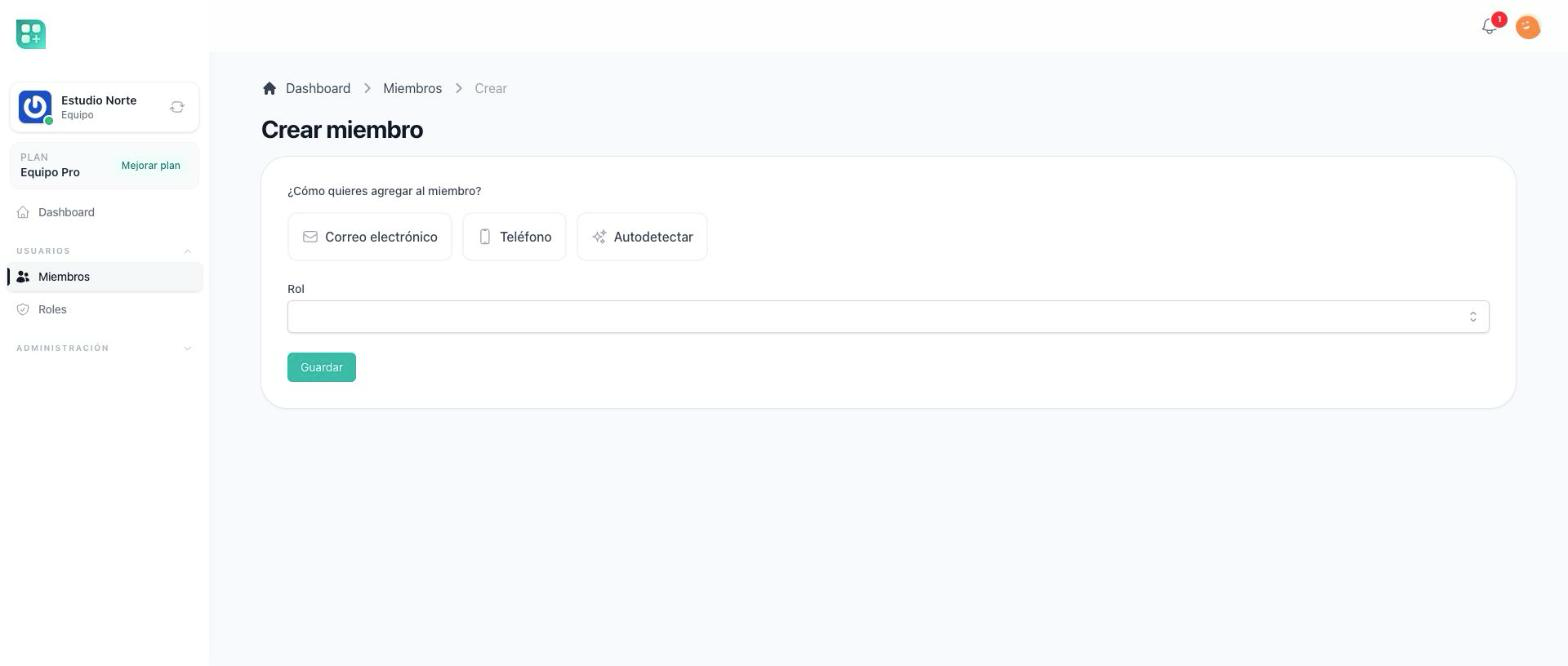
The account exists
The person is added to the team at once, with the role picked in the form. They are told in their account and by email, and the team appears in their list of teams on their next visit. Someone who is already a member is refused with a message.
The account does not exist
Your product works in one of two ways:
| How your product works | What happens |
|---|---|
| By invitation | The address receives an email with a link to the registration page, with the email already filled in. The person joins the team when they register, with the role you picked, and until then they show under Invitations. Only an email can be invited this way: a phone or a username with no account is refused with Phone invitations are not available yet. |
| Account created on the spot | The account is created straight away with the name typed in the form and the identity given, and added to the team with the role. When the identity is an email, the person receives a link to set a password. A phone gets an account but no email, so the person signs in with the code sent to their phone. Nobody is left waiting. |
A pending invitation is used when the person registers, and again every time they sign in. A person invited by several teams joins all of them at once. If a team has no active plan, its invitation waits: the person sees Team not available for now, with You were invited to {team}, but it is not available for now. You will join it the next time you sign in once it is available again., and joins on a later sign-in once the team has a plan again.
The plan's limit
Members and pending invitations both count against the number of members the team's plan allows. When the team has reached it, the Create member button stays on the members list but disabled, and a message under the title says You have reached the maximum number of members allowed by your subscription. Please upgrade your plan to add more members.; a team without a plan is at its limit from the start. The form also refuses with the same message when an invitation is saved. A member not allowed to add members does not see the button at all. See Team plans and billing for where the limit is set.
Changing a member's role
The Edit control on a member's row opens a dialog with the team's roles. Saving replaces the previous role with the chosen one: a person holds exactly one role per team. The owner's own row has no edit control: the owner keeps the owner role for as long as the team exists.
Who can do it
Each action is given to a role on the team's Roles screen, in the Members row. That screen is in the team menu under Team, right after Members.
| Action | What the role needs |
|---|---|
| See the members and the invitations | Members: See |
| Add a member or invite one | Members: Create |
| Change a member's role | Members: Update |
| Remove a member or cancel an invitation | Members: Delete |
The owner can do all four without being given them. The role a new member receives, User as the product ships, has only Members: See. See Team roles and permissions to change that.
What is sent
| When | Who is told | How |
|---|---|---|
| Added to the team | The new member | In their account, by email, and as a browser notification |
| Removed from the team | The member | In their account, by email, and as a browser notification |
| Invited to a team | The invited address | By email, with a link to register |
| An account was created for them | The new account | By email, with a link to set a password |
The first two follow each person's own notification preferences, so a person who turned off email notices receives them only in their account, and only a person who turned on browser notifications on a device receives them there.
For developers
- The members screen lives at
/team/membersand its form at/team/members/create. The team's Roles screen is/team/roles. The identities the form offers areconfig/auth.php→login_identities. - Which of the two behaviours applies is
config/teams.php→invitation_mode, read fromTEAM_INVITATION_MODE:approval_required(by invitation, the default) orauto_provision(account created on the spot). An invitation is aTeamInvitationrow, matched by email and used byUser::acceptTeamInvitations()(App\Traits\HasTeam), which runs when the user is created (UserObserver::created) and on everyIlluminate\Auth\Events\Login(App\Listeners\AcceptPendingTeamInvitations), except while an admin is simulating the user. A used invitation is deleted. One whose team iswithout_plan(plans on and no activedefaultsubscription) stays pending; on sign-in those teams' names go to the session, andApp\View\Composers\UnavailableTeamInvitationNoticesshows one warning per team. - The plan's limit is the
userslimit, checked withteam()->reachedLimit('users')both by the list and again by the form on save, so a saved link to the form does not get past it. - The four actions are the
retrieve members,create members,update membersanddelete memberspermissions on theteamguard. The owner passes them through the policy without holding them. The default role isteam_default_roleinconfig/app.php,useras shipped, with its permissions inteam_roles. - The two tables paginate apart: members with
page, invitations withinvitationsPage, each list's links keeping the other's page. The invitations table is drawn only withinvitation_mode=approval_required. - Opening the edit dialog checks
update membersagain when it mounts, and refuses a team other than the screen's. A new member getsteam_default_rolethroughUserTeamObserver, which puts the permission scope back to0afterwards. - What is sent:
App\Notifications\Members\AddedToTeamNotificationandApp\Notifications\Members\RemovedToTeamNotificationgo through the base's notification system (Send notifications on the base's site), on the channelschannelNotifications()picks: the database always, mail when the person'ssend_mailis on, WebPush when they have a push subscription.UserTeamObserversends the first only while someone is signed in, and never to the team's creator;App\Mail\Member\InvitedToTeamEmailis sent inapproval_requiredandApp\Mail\Member\ProvisionedToTeamEmailinauto_provision.