
Teams in the admin panel
The two screens teams add to the admin panel, what an administrator can change from them, and how billing shows up per team.
The admin panel is where whoever runs the product manages it, and only the product's administrators reach it; see The admin panel on the base's site. A team product adds two screens to it and puts the team on the billing screens. This guide covers those.
Teams
Teams lists every team in the product, newest first: its ID and name, and, when plans are on, its Current Plan. The description, the members and the dates are on the team's detail page. From it an administrator:
- Creates a team for a customer, naming the owner. The team is born the same way as one created by the customer: the owner becomes its first member, the starting roles are created, and the owner receives the Administrator role. Use it when your product signs customers up by hand.
- Edits the name and the description.
- Sees the members on the team's detail page.
- Deletes a team, and restores one that was closed. A restored team comes back with its members, roles and subscription.
The owner is set at creation and cannot be changed afterwards: there is no way to hand a team to another owner.
The team's add-ons
When add-ons are on, the team's detail page shows an Add-ons panel. It is a read-only list of the add-ons the team has, each with the way it has it — included in the plan, a trial, a subscription, a lifetime purchase or a free activation — or "This account has no add-ons." Saving the team's form never grants or removes one.
- Grant for life and Grant a trial, the panel's two actions, give an add-on to the team as if it had been bought or tried; a trial asks for its days, fifteen by default, and a team gets one trial of each add-on, ever.
- A paid add-on the team holds only because it was switched on for free — a gift — has a Remove gift link. Confirming it takes the add-on away, unless that would leave the team using more than its plan allows.
- An add-on given with Grant for life or Grant a trial has a Remove access link. Confirming it takes that access away, with the same limit check; the team keeps the add-on if it also has it another way, and a removed trial still counts as its one trial.
- An add-on the team bought, or that its plan includes, has no link: it is not the administrator's to remove.
- The Access history panel, below, lists every access the team was given, who granted or removed it and when.
The panel and its actions are the same as on a user's page; see Sell add-ons on the base's site.
Agreed prices and custom limits
After the add-ons, the team's detail page shows two more panels, for a deal made with that team alone. They show to the administrators who can grant add-ons, and only while team billing is on.
- Custom limits lists the limits of the team's plan with the value the team has today, marking the custom ones. Set a custom limit gives the team its own value for one of them, members for example; leaving the number empty goes back to the plan's. It holds while the team stays on that plan, and the team is held to it from its next action: a team below what it already uses cannot add more until it uses less. The Custom limits panel needs plans on.
- Agreed prices lists the prices agreed with the team, or says it has none. Add an agreed price sets a price lower than the list price for a plan, an add-on sold by subscription or a package of a meter, forever, for a number of charges or until a date. Remove ends one, and the next charge is at the list price.
Both work on the team exactly as on a user's page; see Plan limits and usage and Create and price a plan on the base's site.
Credit balance and subscription history
After the agreed prices come two more panels, for the same administrators and also only while team billing is on.
- Credit balance shows the credit the team has in its favour, what its next invoice comes to without and with it, and every movement with its date, amount, reason and who made it, or says the team has none. Add credit gives the team credit, with an amount and a reason; Remove credit, shown only while the team has some, takes back credit it has not used yet. Stripe takes the credit off the team's next subscription invoices on its own. The team sees it on its billing screen, signed By Administration rather than with your name.
- Subscription history lists every change to the team's subscription, newest first: its plan, add-ons, prices, renewal day, failed and recovered payments, the payments received with what they covered, and the credit added, removed or applied. Each line ends with who made the change, with your colleague's name for what an administrator did. The team sees the same history on its billing screen, without the names.
Both work on the team exactly as on a user's page; see Create and price a plan on the base's site.
The list can be filtered by plan, so an administrator finds every team on a given plan.
Fields of your own on a team
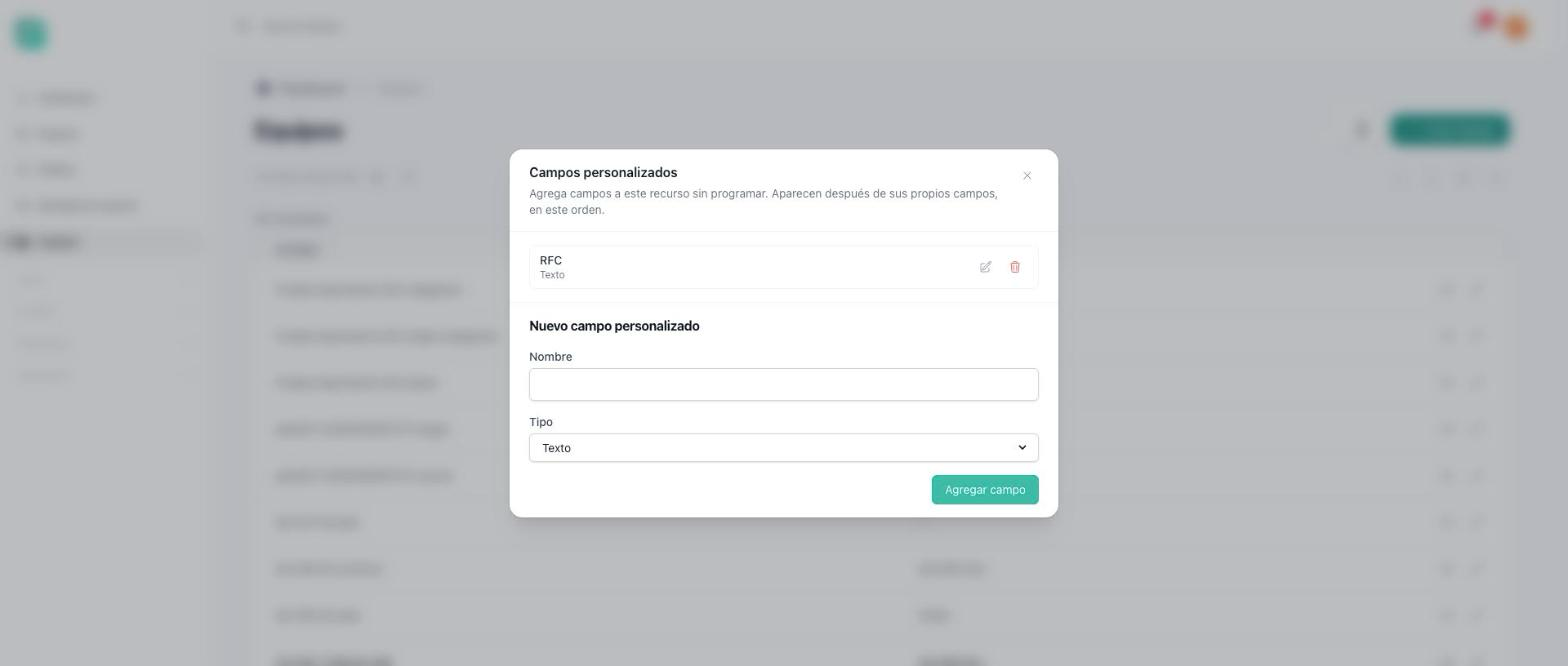
The teams list has a Custom fields button in the bar above the table, the same one the users list has. From it you add fields the team form does not ask for yet: a tax id, an account manager, a contract date, a value picked from a list, an image. From then on they appear in every team's form, after the team's own fields, and each one can be shown as a read-only column in the list. None of them is required.
Anyone who can create or edit a team can change that list, with no new permission. Adding, ordering, changing and deleting the fields works the same way everywhere in the panel, and is written once in Add custom fields on the base's site.
Three things are worth knowing on a team in particular:
- These are not the team's extra fields. The team writes those itself, from its settings screen, and never sees the fields you add here. The two lists are separate: the same name can live in both without either touching the other.
- An image you upload here is stored in the panel's shared General folder and counts against nobody's space, neither yours nor the team's. You find it in the General folder of the panel's Media screen, inside a folder named Teams, with one subfolder per team.
- Closing a team deletes those images for good. A closed team can be restored with its members, roles and plan, but a picture stored in one of these fields is not restored with it: the field is left pointing at a picture that no longer exists.
Members
Members lists the memberships: the person's name and email, the team, and since when. It is the list behind the members screen of each team, for when an administrator has to see or fix a membership without entering the team. It has no entry in the panel's menu: open it by its address, which is under For developers below. Deleting a row removes the person from that team and sends them the same notice as being removed by the owner.
The panel's roles and the teams' roles
Roles, in the admin panel, shows only the panel's own roles. The roles a team writes for itself live on that team's Roles screen and never appear here. See Team roles and permissions.
Plans and add-ons
The plans, add-ons and meters screens are the same as in every Weblabor product. As shipped, the product sells only to teams, and their forms have no Context field: everything you create there is sold to teams. The field appears only when your product also sells to people; then it says who each plan, add-on or meter is sold to: users, teams or both. See Team plans and billing.
The add-on form's Capability field lists the capabilities your product declares; with a Context field set to teams, only the ones declared for teams. The field does not show while your product declares none. A capability that is not declared yet is shown with a warning: the add-on can be sold, but switches nothing on until it is declared.
Users
The users screen is unchanged. A person's teams do not show on it: open Members, or the team, for that. Acting as a person from here lands you where they would land: their list of teams, or straight into one of their teams when your browser had that team open last.
For developers
- The two resources are
/admin/teamsand/admin/user_teams, for accounts with the global role named inapp.admin_role(admin). Deleting a team soft deletes it.App\Front\Resources\UserTeamsets$section = 'members', which keeps it out of the admin sidebar. - The team list's plan column, its plan filter and the Add-ons, Custom limits, Agreed prices, Credit balance, Subscription history and Access history panels come from billing-core's owner resource,
billingTeamOwnerResource(), which returnsnull, and adds nothing, while the team billing adapter is not registered. Each panel is a direct entry of the resource'sfields(), which is where Laravel Front looks for a panel's actions. - An image custom field of
/admin/teamsuploads to theGeneralmedia folder, owned by nobody, underTeams/{id}: the resource has nomediaOwner()and its address is under/admin. - The panel's roles at
/admin/rolesare the ones on thewebguard, withteam_idat0; a team's roles live at/team/rolesinside that team. - As shipped only the team billing adapter is registered; the user adapter is
BILLING_USER_ENABLED.BillingManager::contextOptions()returns nothing with fewer than two adapters, and the plan, add-on and meter forms hide the empty Context field. - The Capability field lists the methods of
app/Classes/TeamPlanFeatures.phpwhen the context is teams, ofapp/Classes/PlanFeatures.phpwhen it is users, and of both with no context, which is the case with a single adapter. A capability no class declares switches nothing on until the method exists. - Acting as a person is impersonation, and it lands on the switcher at
/app.