
Teams and the team switcher
What a person sees after signing in, how a team is created, entered, configured, left and closed.
A person signs in once and works inside one team at a time. This guide follows that person from the sign-in to the team's settings screen.
The team list
After signing in the person lands on Teams, the list of every team they belong to, with its logo, and a Create Team button. Clicking a team opens its workspace.
The choice is remembered: the next visit skips the list and opens that team straight away, as long as the person still belongs to it. To see the list again, the team menu has a Switch Team button next to the team's name. Signing out forgets the choice.
When the person belongs to no team, the list shows only the button to create one.
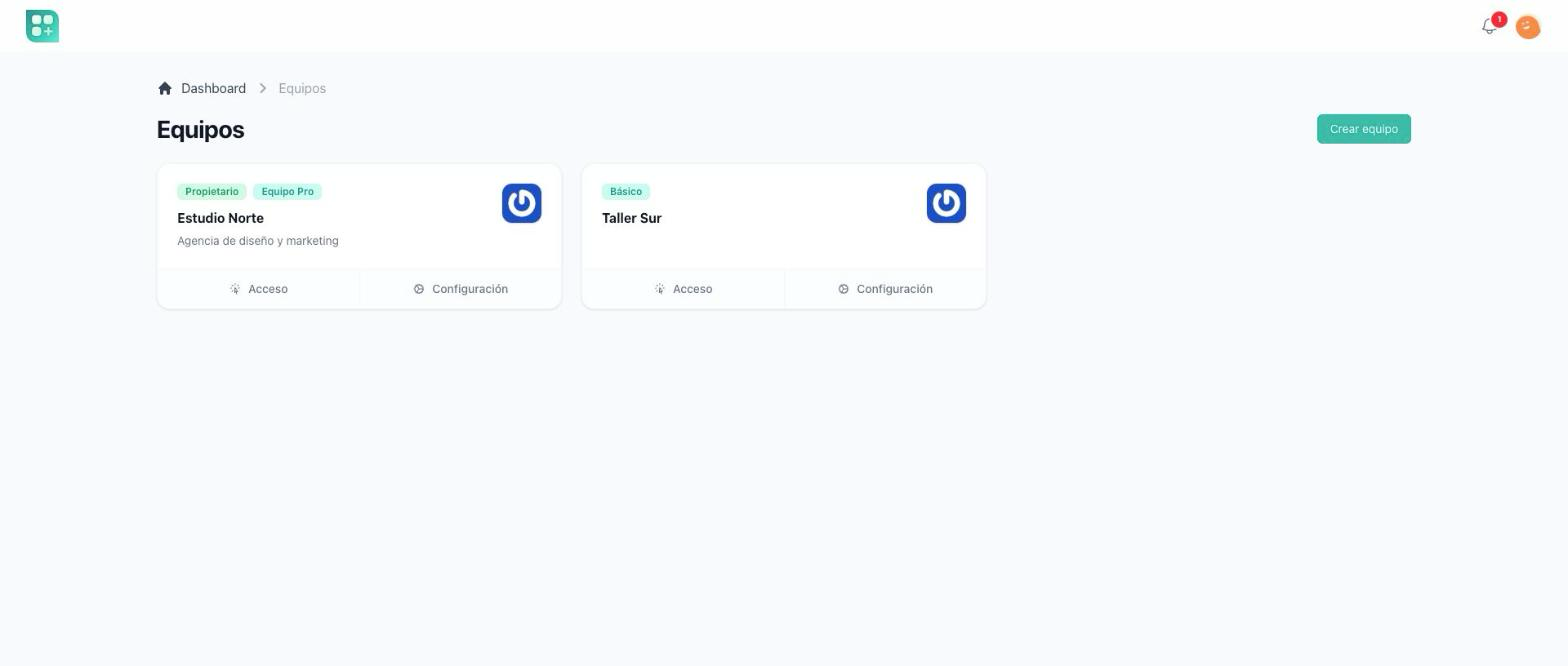
One team per person
Some products create the team for the customer, and the customer never makes another. There the list never shows: the person is sent straight to the only team they belong to, and someone with no team sees a message asking them to contact the administrator instead of a create button.
Creating a team
Create Team opens a form. A name is required, a description is optional. Saving does the rest:
- The person becomes the team's owner, and its first member.
- The team's starting roles are created, and the owner receives the Administrator role, which can do everything in the team. See Team roles and permissions.
- The new team's dashboard opens, with the new team active.
When plans are on, a new team is put on the free plan as it is created, and opening the team's dashboard does the same for a team that still has no plan, so a team with no card can start working. When that is not possible the team stays without a plan and its members are told why. See Team plans and billing.
The team's workspace
Every screen of the team works inside the selected team. A person removed from the team is sent back to the team list on their next click.
| Screen | What it shows | Who reaches it |
|---|---|---|
| Dashboard | Counters of roles, members and invitations, and the usage of the plan's limits. | Any member. |
| Members, in the Team group of the menu | The members and the pending invitations. | Roles with Members: See. Removing a member or an invitation takes Members: Delete, and changing a member's role takes Members: Update. |
| Create member, on the members list | The form to add a member. | Roles with Members: Create; at the plan's limit the button stays on the list but disabled, and the form refuses on save. |
| Roles, in the Team group of the menu | The team's roles. | Roles with the Role permissions. |
| Files and Space, in the Files group of the menu | The team's shared files, and how much room they take up. | Roles with Manage Media. |
| Tickets and Chat, in the Administration group of the menu | The team's support tickets, and your chat with support within this team, when your product has them on. See Ask for support from a team. | Any member. |
| Settings, the last entry of the Administration group | Name, description, picture, the extra field, importing and exporting the team's data, and leaving or closing the team. | Any member. Only roles with Edit Settings can change anything there, and only they see the Import and export data tab. |
| My plans and Add-ons, in the Billing group of the menu, and the billing, payment methods and balance screens | The team's subscription, and the balance it owes. | Roles with Manage Plans; anyone else is sent back to the dashboard with a message. |
The owner opens all of them through the Administrator role, which has every permission; only the members screens let the owner in whatever the role says. If your product withholds a permission from that role, the owner is refused where it is asked for, like anyone else. See Team roles and permissions.
The members, roles, files and space screens each ask only for their own permission. Plans being on or off, the team's subscription or balance, and Manage Plans do not enter into it: the menu offers each screen to exactly the members who can open it, and a member without the permission who opens it anyway is refused. Only the billing screens ask for Manage Plans, and they never require a subscription, so a team whose plan lapsed can still reach the page that fixes it.
Settings asks for no permission to open, on purpose: it is where a member leaves the team, so every member reaches it and sees it in the menu, whatever else they may or may not do.
Links that open a team
A link the product sends about one team — in an email, for example — opens that team, even when the person was working in another one:
- A member of that team lands on the screen with that team active, exactly as if they had chosen it in the team list.
- Someone who is not a member, or a link to a team that no longer exists, lands on the team list with the notice You are not a member of that team, and their active team does not change. With one team per person, the notice shows on the screen that mode already leads to.
- Someone not signed in signs in first and then arrives at the same place.
Opening a team this way grants nothing: the screen still asks for its own permission.
Team settings
Settings edits what the team is:
- Name and description.
- Team picture, the team's logo. A JPG, PNG, GIF, WebP, HEIC, HEIF or AVIF file up to 5 MB, stored in the team's file library and counted against the team's storage quota. Upload another to replace it straight away, with no question asked, take it off the team while keeping the file, or delete the file from the library to give the space back. Without one, the team shows a generated avatar from its name. See Team files and space.
- Extra Fields, a tab of its own with a single free-text box, Extra Field, for one more thing your product needs to know about a team, such as a tax id. It is saved with Save, together with the name and the description.
- Import and export data, a tab only members with Edit Settings see. Packs the team's data into a file, and reads one back into the team. See Move team data between environments.
Leaving or closing the team
The same screen has Leave the team, and for the owner, Delete team. Both ask the person to type the team's name before anything happens.
- A member who confirms is removed from the team and sent to the team list. They receive the same notice as someone removed by the owner.
- The owner who confirms closes the team: every member loses access, and the owner is sent to the team list. The team's roles, subscription and records are kept, so an administrator can restore it from the admin panel.
There is no way to hand the team to another owner: the owner is the person who created the team, for as long as the team exists.
Categories in a team
Where your product lets you file a record under a category, a team keeps categories of its own:
- Inside a team, the category list offers only that team's categories.
- Outside any team, in your personal area, it offers only the shared categories and your own, never a team's.
- Your personal categories screen, when your product links to one, lists only the shared categories and your own. A team's categories never show there, and you cannot edit or delete one from it, or place a category of yours under it.
A team has no categories screen of its own: its categories are created by your product.
Notices a team sends
| What happened | Who is told | How |
|---|---|---|
| Added to a team | The new member | In the account and by email. |
| Removed from a team, or left it | The member | In the account and by email. |
| Invited to a team that they have no account in yet | The invited email | By email, with a link to register. |
| An account was created for them | The new account's email | By email, with a link to set a password. |
The last two are described in Members and invitations.
For developers
-
The team list is
/app. When theteam_idcookie, or failing that the user'scurrent_team_idcolumn, names a team of theirs,/appgoes straight to/team; Switch Team opens/app?redirect=false, which always shows the list. Creating a team is/app/teams/create; saving it sets the cookie to the new team and lands on its dashboard. The choice is remembered in the cookie, written when a team is opened from the list, created or reached through a team link, and forgotten on sign-out. Nothing in the kit writescurrent_team_id: it is only read as a fallback, and cleared when it no longer leads to a team of theirs. -
One team per person is
APP_ENABLE_MULTI_TEAMS=falsein.env. -
The owner is stored as
creator_user_id. The starting roles areconfig/app.php→team_roles, and the owner role is the one named inteam_owner_role, created with every team permission. -
Everything under
/teamruns behind theteammiddleware: it loads the team, checks the person is still a member, and activates the team's permissions for the request. See The team context. -
The screens and their permissions on the
teamguard:URL Permission /teamnone /team/membersretrieve members;delete membersto remove,update membersto change a role/team/members/createcreate members/team/rolesthe rolepermissions/team/media,/team/spacemanage media/team/settingsnone to open; edit settingsto change anything/team/plans,/team/add-ons,/team/billing,/team/payment-methods,/team/debtmanage plans -
A link names its team with
?team=and the team's id at the end, such as/team/members?team=12. A member lands with that team active and the address bar ends without?team=, so reloading or bookmarking does not switch again. A link without?team=opens against the active team. To build these links from your own code, see The team context. -
The Extra Field box is bound to
fields.extra, so it is stored under theextrakey of the team'sextra_fieldsjson column; read it asteam()->extra_fields['extra'] ?? null. -
The Import and export data tab is added only when the member holds
edit settings. -
Closing a team soft deletes it.
-
A team category is a row of
categorieswith the team'steam_id; the global ones havenull.Category::forTeam(team()?->id)applies the rule above, and/app/categories/{type}lists only categories without a team. Team categories are created in code, withteam_idset.