
What Weblabor Teams is
What teams add to Weblabor Base, what they change, and where the rest is documented.
Weblabor Teams is Weblabor Base with the team at the centre of your product: several people share one account, one plan and one bill, and the team decides who gets in. Read this first to know what teams add, what they change, and which guide covers each part.
What it starts from
Everything Weblabor Base comes with is here, unchanged: accounts and sign-in, the account area, the admin panel, roles and permissions, plans and add-ons, notifications, browser notifications and the installable site, two languages, time zones, country detection, the public site and this help centre. None of it is explained again here: the base has its own site at base.wbor.dev, and its help centre at base.wbor.dev/help covers the shared part.
What teams add
- Teams. Each team has a name, a description, a logo, extra fields of your own and an owner. A person creates as many teams as they want and belongs to as many as they are added to, unless your product turns the team switcher off: then each person goes straight into one team. See Teams and the team switcher.
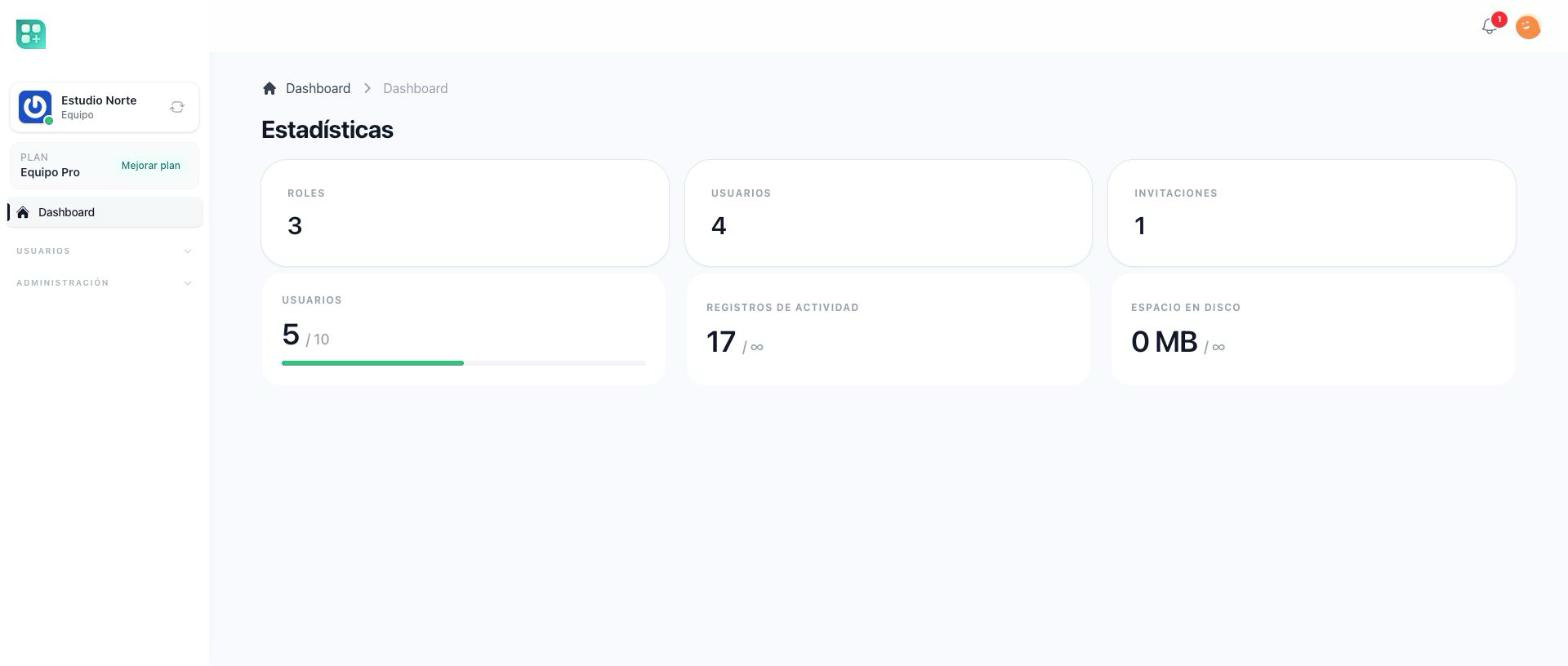
- A workspace per team. After signing in the person goes back to the team they last worked in, or picks one the first time, and every screen of the team works inside it: its dashboard, its settings, its members, its roles, its plan. Switching teams switches all of it.
- Members and invitations. Someone is added by email, phone or username. An existing account joins immediately; a new one is invited to register, or has its account created on the spot, depending on how your product works. See Members and invitations.
- Roles per team. Each team has its own roles: an owner role that can do everything, and a starting role for new members. The team writes more roles from its own screen. See Team roles and permissions.
- Billing per team. The plan, the add-ons, the card, the invoices and the usage limits belong to the team. See Team plans and billing.
- Files and storage per team. One shared file library the team works in, and a storage quota set on the team's plan that can be sold in larger sizes. The team logo lives there too. See Team files and space.
- A team's data, moved between environments. From its settings a team packs everything it owns into a file and loads it into a team somewhere else, files included. See Move team data between environments.
- Support from the team. When support tickets are on, Tickets lives in the team menu, every ticket belongs to the team the person is working in and its response time follows that team's plan; when the live chat is on, Chat sits beside it and whether you can chat follows that team's plan too. See Ask for support from a team.
- Teams in the admin panel. Two screens, teams and memberships, with the billing of each team. See Teams in the admin panel.
What it changes from Weblabor Base
A few things mean something different once the team exists. Keep them in mind when you read a guide of the base.
| In Weblabor Base | In Weblabor Teams |
|---|---|
| After sign-in the person lands on their own dashboard. | After sign-in the person lands in the dashboard of the team they last worked in, or picks a team the first time. |
| Roles are the same for the whole product. | The admin panel keeps its roles, and each team writes roles of its own. |
| The subscription belongs to the person, managed from their account. | The subscription belongs to the team, managed from the team's plans, add-ons, billing and payment methods screens. |
| Categories are shared by everyone. | A category can belong to a team: inside a team, only that team's categories are offered, and outside any team only the ones that belong to no team. |
| The file library and the storage quota belong to the person. | They belong to the person and to the team: each person keeps a personal library, and each team has a shared one, each with its own quota. |
| A new registration creates an account. | A new registration also joins every team that invited that email. |
The account area, the profile, the sessions, the notifications and the language stay personal: they follow the person into every team.
What it is good for
A product sold to companies, agencies, clinics, schools, studios: anything where several people share one account and one bill, and one of them decides who gets in. A product where the same person works for more than one customer. A product whose admin panel needs to see every customer and what each one pays.
What it is not for
A product with one account per person and nothing shared, where the base alone is the shorter road. A product where each customer needs a database of its own: teams keep customers apart inside one shared database.
Where to go next
- Teams and the team switcher for what the person sees first.
- Members and invitations to bring people in.
- Team roles and permissions to decide what each of them can do.
For developers
- You clone the kit, build on it and merge the base into it for as long as the project lives. The base's own folders stay in the repository,
docs/weblabor-base/andresources/views/landing/weblabor-base/, untouched and unused. Everything about teams lives indocs/weblabor-teams/andresources/views/landing/weblabor-teams/, so a merge from the base never fights it. - Teams are the
Teammodel. Everything under/teamruns inside the selected team./appis the personal area: it sends a person with a current team straight to/team, and/app?redirect=falseshows the list of teams (the Switch Team button of the team sidebar, shown whileapp.enable_multi_teamsis on). - New accounts are invited or created on the spot according to one config key; see Members and invitations.
- Team roles run on Spatie Permission's teams mode, with an owner role holding every team permission. There are two permission guards:
webfor the admin panel and the switcher,teamfor everything inside a team; the same policy class picks the right one. - Billing per team comes through the adapter in
packages/billing-team. The team's billing screens are/team/plans,/team/add-ons,/team/billingand/team/payment-methods, where the base uses/account/plans. - The personal library is
/app/mediaand the team's/team/media. - Moving a team's data packs a zip. What travels is read from the relations your own
Teammodel declares, so the tables you add come along without touching the exporter. - Teams isolate by a
team_idcolumn and a permission context, not by connection. - Before writing code: Get it running on the base's site, which applies as it is; Configure teams for the keys teams add; and The team context and Build a team-scoped CRUD before writing your first screen inside a team.